Description
Keep or remove a contiguous section of rows.
Examples
Keep only the rows between the 'YEAR' rows:
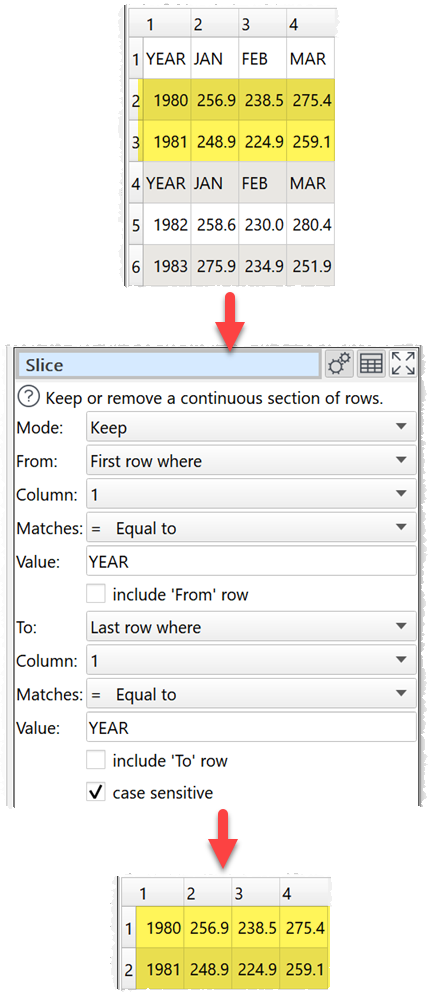
Remove the last 2 rows:

Inputs
One.
Options
•Set Mode depending on whether you want to keep or remove the slice.
•Set From according to how you want to choose the first row of the slice.
oStart for the first row.
oStart plus for the first row plus an offset (set in Plus). E.g. Setting Plus to 2 means 2 rows after the first row (row 3).
oFirst row where or Last row where to select the first or last row that matches Column, Matches and Value. You can use a column variable for the Value.
•Uncheck Include 'From' row if you don't want to include the first row in the slice.
•Set To according to how you want to choose the last row of the slice.
oEnd for the last row.
oEnd minus for the last row minus an offset (set in Minus). E.g. Setting Minus to 5 means 5 rows before the last row.
oFirst row where or Last row where to select the first or last row that matches Column, Matches and Value. You can use a column variable for the Value.
•Uncheck Include 'To' row if you don't want to include the last row in the slice.
•Check case sensitive to use case sensitive matching for text.
Notes
•If there is no match for the From or To row:
oMode=Keep will remove all rows
oMode=Remove will keep all rows
•Number, date and text values are treated differently for Equal to, Greater than, Less than, Greater than equal, Less than equal and Not equal to operations.
oIf both values are numeric, a numeric comparison will be carried out. This is accurate to approximately 16 digits of precision.
oIf both values match a supported date format in Preferences, a date comparison will be carried out.
oOtherwise the values will be treated as text.
oFor example, an empty value is considered less than 0, because they will be compared as text. So you might want to replace empty values with 0 or remove those rows with Filter, before comparing them.
•All values are treated as text for Contains, Starts with, Ends with, Matches regex, Is not, Doesn't start with, Doesn't end with and Doesn't match regex operations.
•Comparisons of text are whitespace sensitive. Cells with whitespace will not match Is empty. You can use Whitespace to remove whitespace before filtering and Replace to get of other unwanted characters (e.g. whitespace inside the text).
•See here for more details on Regular expressions (regex).
•If you want to keep or remove a selection of rows by row number, use a Row Num transform followed by a Filter transform.