Pie charts are useful when you want to show how much each category contributes to a total.
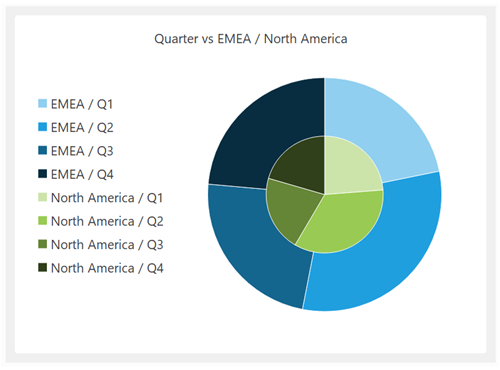 Pie chart
A Pie chart can display a maximum of 100 data points (per facet, if Faceted). E.g. 10 Y columns x 10 rows or 1 Y column x 100 rows. You can insert a Filter or Sample transform before the chart if you have too much data.
The pies are drawn with the leftmost Y series as the outer pie. You can change the column order using a Reorder Cols transform before the chart.
Configure tabThe X axis data is interpreted as text/label/category values.
The Y axis data must be numeric. You can change the column order using a Reorder Cols transform before the chart.
If more than one row has the same X axis value, then their Y values will be summed.
When numeric data is expected, any non-numeric data is ignored (including empty values). Numeric data is interpreted according to the selected Locale.
Y columns where all values are zero, are not shown as bars.
The Chart layout can be Grouped or Faceted if you select multiple columns for Y axis data.
General tabSet the Theme drop-down to choose a palette of colors.
Set Text to modify the chart title text and visibility. If you set Title to Custom the column variables $(X) and $(Y) will be replaced with the names of the X and Y columns. This is particularly useful if you have multiple facets.
Set Legend to modify the legend position and visibility.
Output tabSee Chart data. |