Bar charts are useful when you are comparing distinct categories.
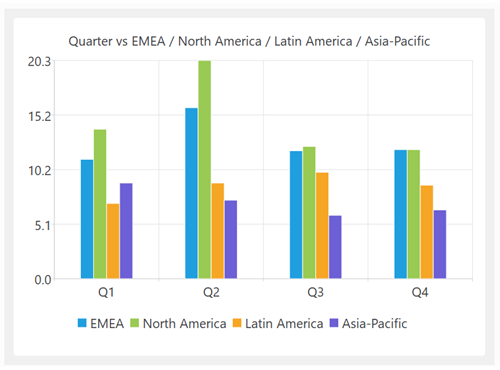 Vertical bar chart
A Bar chart can display a maximum of 1,000 data points (per facet, if Faceted). E.g. 10 Y columns x 100 rows or 1 Y column x 1000 rows. You can insert a Filter or Sample transform before the chart if you have too much data.
Configure tabThe X axis data is interpreted as text/label/category values.
The Y axis data must be numeric. You can change the column order using a Reorder Cols transform before the chart.
If more than one row has the same X axis value, then their Y values will be summed.
When numeric data is expected, any non-numeric data is ignored (including empty values). Numeric data is interpreted according to the selected Locale.
Y columns where all values are zero, are not shown as bars.
The Chart layout can be Grouped, Stacked or Faceted if you select multiple columns for Y axis data.
General tabSet the Theme drop-down to choose a palette of colors.
Set Text to modify the chart title text and visibility. If you set Title to Custom the column variables $(X) and $(Y) will be replaced with the names of the X and Y columns. This is particularly useful if you have multiple facets.
Set Legend to modify the legend position and visibility.
X Axis tabCheck show axis to show the X axis. Check show grid to show X axis grid lines. Only available if show axis is checked. Check show labels to show X axis labels. The label text is interpreted as HTML. Only available if show axis is checked. Set Label angle to set angle of the X axis data labels in degrees (0=horizontal). Only available if show axis and show labels are checked. Set Title to modify the X axis title text and visibility. If you set Title to Custom the column variable $(X) will be replaced with the name of the X column.
Y Axis tabSet Scale to choose a linear or logarithmic Y axis. Set Minimum to: •Automatic to set the Y axis minimum based on the minimum Y data value. •Custom to set the Y axis minimum manually. Set Maximum to: •Automatic to set the Y axis maximum based on the maximum Y data value. •Custom to set the Y axis maximum manually. Check same range all facets if you want every facet to have the same axis minimum and maximum, for easy comparison. Only available if Chart layout is Faceted and Minimum or Maximum is Automatic. Check use 'nice' values to set Y axis values to multiples of 1x10^n, 2x10^n and 5x10^n. May expand the range of the axis. Only available if Scale is Linear. Check show axis to show the Y axis. Check show grid to show Y axis grid lines. Only available if show axis is checked. Check show labels to show Y axis labels. Only available if show axis is checked. Set Label angle to set angle of the Y axis data labels in degrees (0=horizontal). Only available if show axis and show labels are checked. Set Label format to set the format of numeric format of Y axis labels: •Automatic=set automatically •e=exponent e.g.: 1.230e+06, Precision is the number of digits after the decimal point •E=exponent, e.g.: 1.230E+06, Precision is the number of digits after the decimal point •f=floating point, e.g.: 1230000.000, Precision is the number of digits after the decimal point •g=most concise of e or f, Precision is the maximum number of significant digits (trailing zeros are omitted) •G=most concise of E or f, Precision is the maximum number of significant digits (trailing zeros are omitted) •i=integer, e.g. 1230000 (will truncate non-integer values) Set Title to modify the Y axis title text and visibility. If you set Title to Custom the column variable $(Y) will be replaced with the name of the Y column(s).
Output tabSee Chart data. |