You can input From Folder to stack hundreds of files or Excel sheets from a hierarchy of folders, without having to specify the individual files/sheets. To input a folder:
•Click From Folder in the Left pane; or
•Drag a folder onto the Center pane
The Folder To Input window will appear.
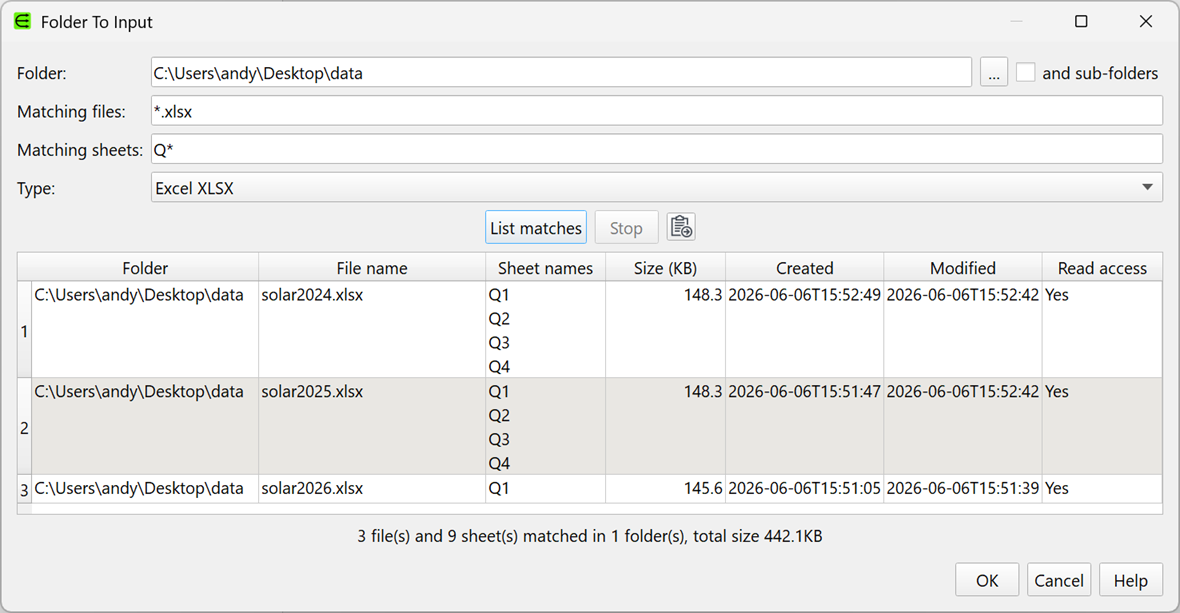
In this window you can specify:
•The Folder to input from. This cannot include wildcards.
•Whether to include sub-folders.
•Matching files as a wildcard, using * and/or ?. Matching is case insensitive.
•Matching sheets as a wildcard, using * and/or ?. Matching is case insensitive. For Excel files only.
•The file Type.
Click List matches to list the matching files/sheets in the order they will be read. This only lists the files/sheets, it does not read them in. Click Stop to halt the listing.
Click the Copy button to copy the listed matches to the clipboard. You can then click From Clipboard in the Left pane to input this as a dataset.
The files are traversed in alphabetical order in each folder, before doing a depth first traverse of any sub-folders. Circular symbolic links should not cause a problem.
All files should be of the same type e.g. all CSV files.
If the files have different numbers of columns, they will be aligned (stacked) by column position. If you want to align by column names in each file, you can set a Schema. You will be warned if header names or the number of columns differ between files.
Ignore Empty columns will only be applied after all files have been read.
You can also specify folder input from the command line and in batch processing.
See also:
•Video: How to combine multiple CSV files into one
•Video: How to combine multiple Excel files into one sheet