This production release adds enhancements to Easy Data Transform v2.12.0.
You will require a v2 license to use this release after the free trial has expired. You can buy a new license key here or, if you have a v1 license key, you can buy a discounted upgrade here. See also our upgrade FAQ.
We recommend that you back-up important .transform files before installing any new release.
Please let us know of any problems or issues you encounter with the release.
The download links are at the bottom of the page.
System requirements
Windows: 64 bit Windows 11/10/8/7 (Intel processor) or 64 bit Windows 11 (ARM processor).
Mac: macOS 26 to 10.13 (Universal Binary for ARM M series or Intel processors).
Compatibility
This version can read .transform files saved in all previous versions.
All Editions
Windows and Mac
1. Previously, when you disconnected an item and reconnected it to a different upstream item, all the column related options would be reset. This could be time-consuming to fix. Easy Data Transform will now try to repair broken column references, by setting them to columns that have the same name, in the new upstream item.
For example: In the animation below there are 2 datasets with ‘Weight’ and ‘Age’ columns. Disconnecting from one and connecting to the other causes the columns with the same names to be referenced in the downstream items, even though the columns are in a different order.

Matching of column names is case and whitespace sensitive. If there are multiple columns with the same name, it will pick the first one (left to right).
Successfully repaired column references are reported in the Right pane Info tab. Unsuccessfully repaired column references are reported in the Right pane Warnings tab.
Currently this column reference repair doesn’t work if you copy and paste items and then connect them. We hope to fix this in a future release.
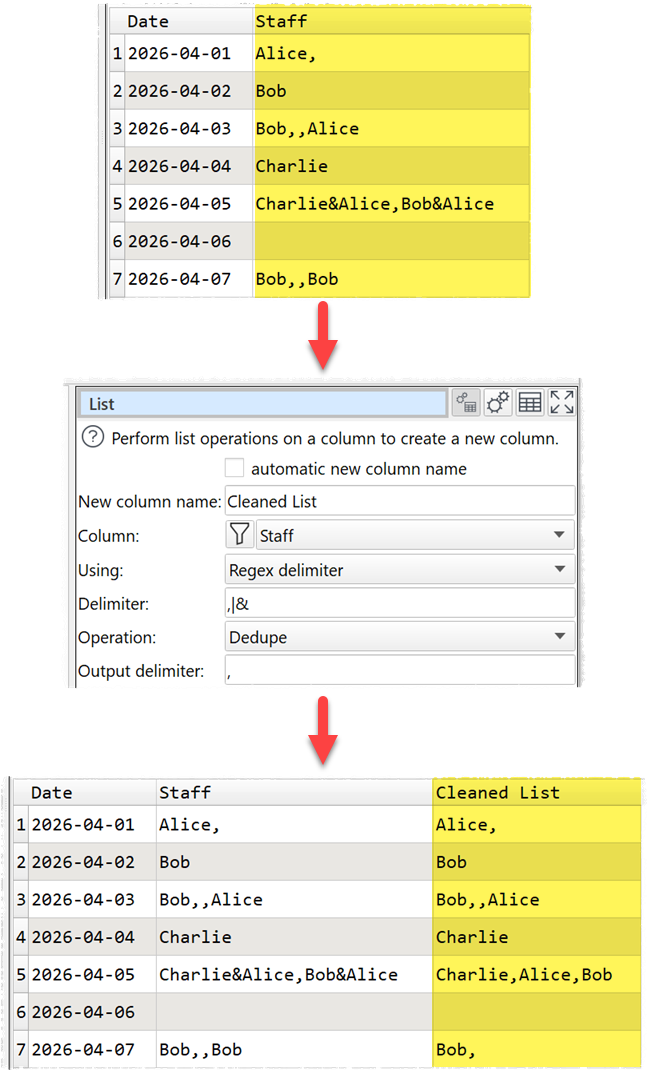
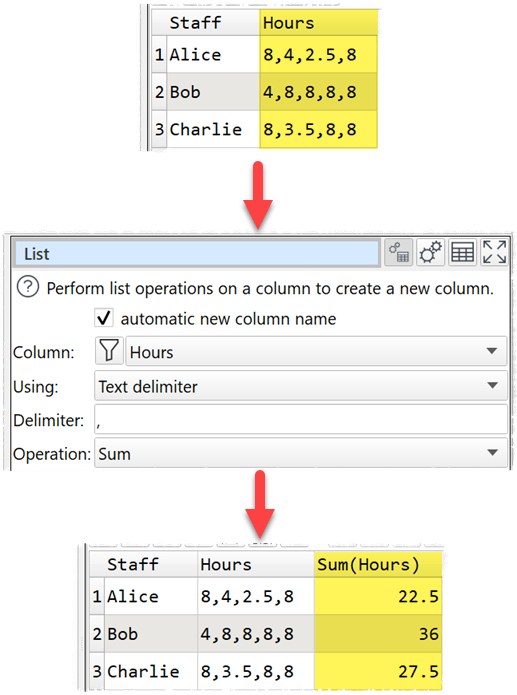
2. A new List transform has been added. This allows you to perform a wide range of operations on a delimited list of values in a column.
For example deduplicating names in a comma+ampersand delimited list:
Or summing values in a comma delimited list:
The list operations supported are:
- Average
- Count
- CountDistinct
- Dedupe
- First
- Last
- Maximum
- Median
- Minimum
- Product
- RemoveEmpty
- RemoveEven
- RemoveFirst
- RemoveLast
- RemoveOdd
- ReverseItems
- ReverseOrder
- SortAscending
- SortDescending
- Sum
- Tidy
- Trim
Case and whitespace are important. A new column is created with the result.
See the List transform documentation for more details.
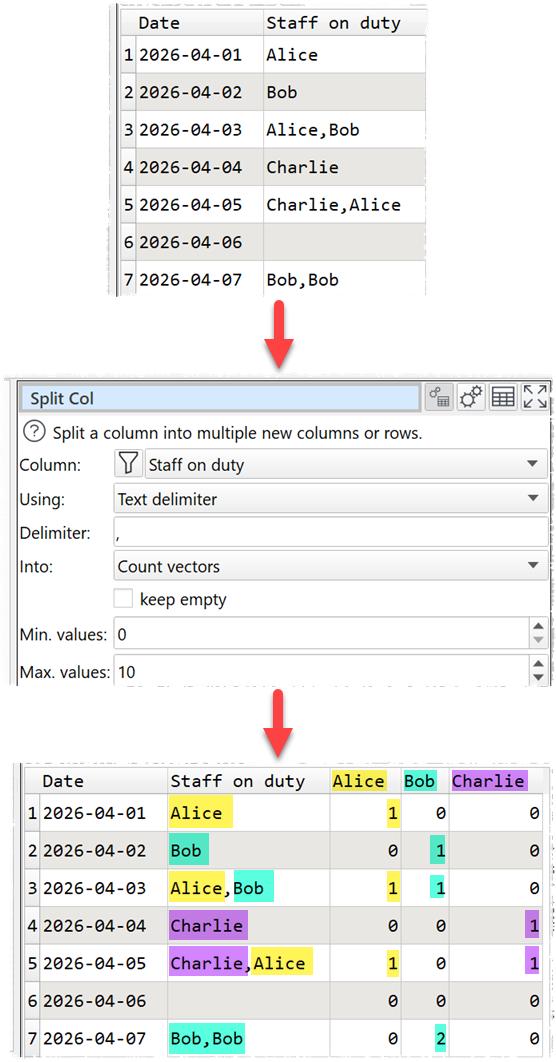
3. The Split Col transform now has additional Into options:
- Count vectors
- One hot encoding.
Count vectors creates a column for each split value, with the number of times the value is present in the row. For example, from a list of staff names, you can create a column for each staff member showing how many times they were on duty for each date.
One hot encoding is similar to Count vectors, but it uses a 1 or 0 to show if a value is absent or present. Duplicate values are ignored. For example, from a list of staff names, we can create a column for each staff member to show whether they were on duty or not for each date.
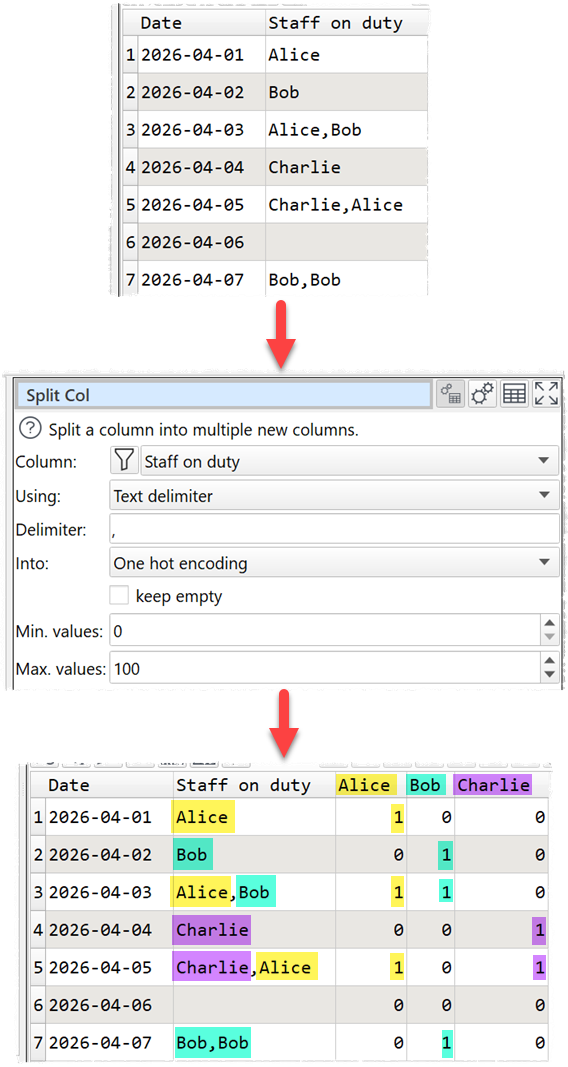
The new columns are created in alphabetical order. Case and whitespace are important.
4. The following options have been added to the Calculate transform:
- DateTimeAddMSecs
- DateTimeAddSecs
- DateTimeAddHours
- DateTimeAddDays
- DateTimeAddMonths
- DateTimeAddYears
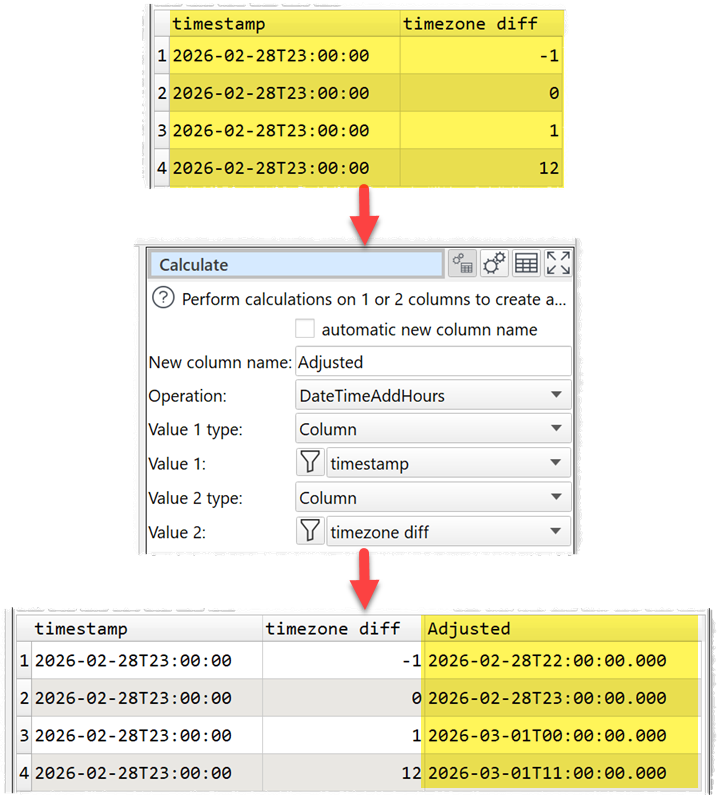
They all take an ISO datetime as the first value and an integer (which can be negative) as the second value.
You can use DateTimeAddHours for time zone adjustment where the time zone difference in hours is a constant or in a separate column.
5. The following option has been added to the Calculate transform:
- DateTimeToUTC
This takes an ISO datetime with a time zone offset and converts it to UTC (Coordinated Universal Time). Use a ‘Z’ to denote that a time is already UTC.

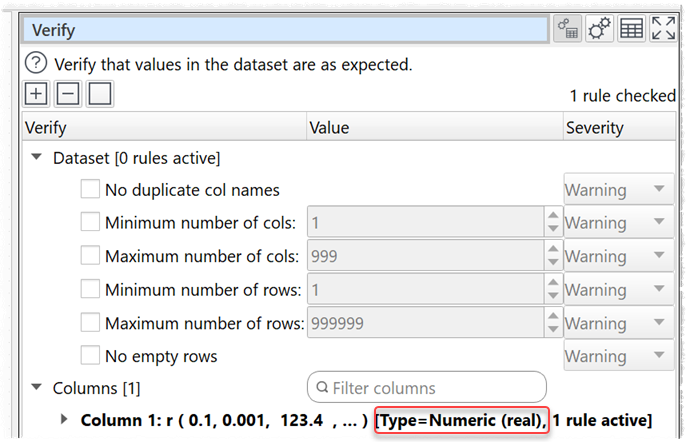
6. In the Verify transform you can now see the column type without having to expand the children.
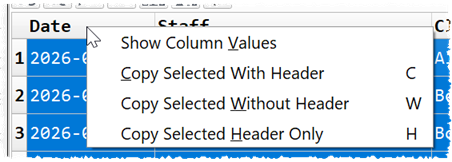
7. The Ctrl+C and Ctrl+Shift+C keyboard shortcuts for the Right pane data table have been replaced with C and W. These are more convenient and don’t clash with the use of Ctrl+C for copying items in the Center pane. You can also use H for copying the header only.
8. Added additional documentation pages for DateTime columns and How do I?>Convert time zone.
 Windows Download
 Mac Download